How to Create a Free QR Menu for Your Restaurant in 5 Minutes
Aug 26, 2026
Want to set up a digital QR code menu for your dining establishment so guests can easily browse dishes on their phones, but worried about expensive agency fees or complicated software setups?
With TaoMenu, you can build a complete, professional digital menu ready for customer tables in under 5 minutes—all directly from the smartphone in your pocket.
Here is the step-by-step walkthrough.
What You Need Before Starting
All you need is:
- A smartphone or laptop with an internet connection.
- Your dish names, categories, and prices (photos are optional but recommended).
4 Simple Steps to Create Your QR Menu
Step 1: Sign Up for Your Store Account
- Visit TaoMenu.
- Enter your email to receive an instant One-Time Password (OTP) or log in with Google.
- Fill in your restaurant name and business type (e.g., Corner Bakery, Old Town Pho).
Step 2: Create Categories and Add Items
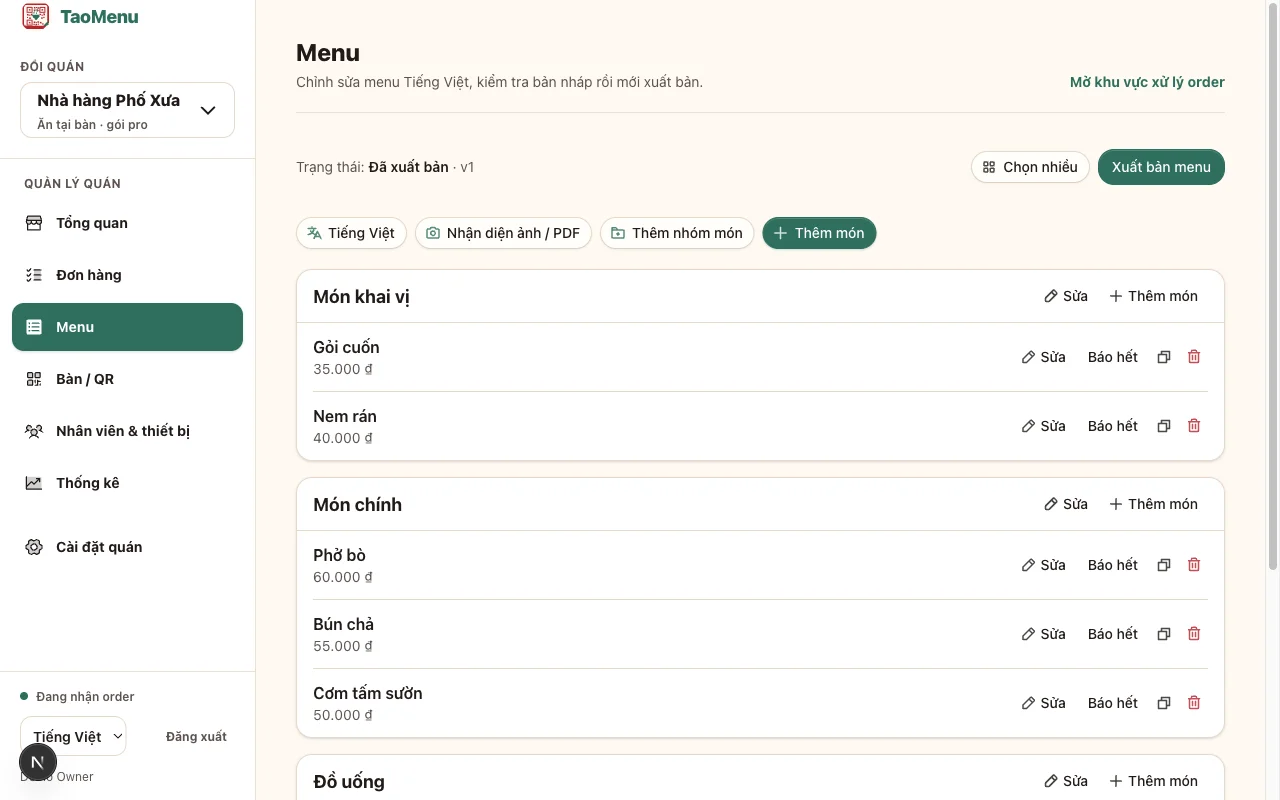
- Open the Menu Editor from your dashboard.
- Tap Add Category (e.g., Main Dishes, Beverages, Sides).
- Under each category, tap Add Item:
- Fill in the item name and price.
- Add a brief description and upload a dish picture.
- Set up custom modifier groups if needed (e.g., Size options, Spice level).
- Click Publish Menu to make your digital catalog live.
💡 Pro Tip: If you already have a physical paper menu, simply take photos of each page. TaoMenu's AI Menu Import will scan and extract categories, item names, and prices automatically in seconds!
Step 3: Generate and Print Table QR Codes
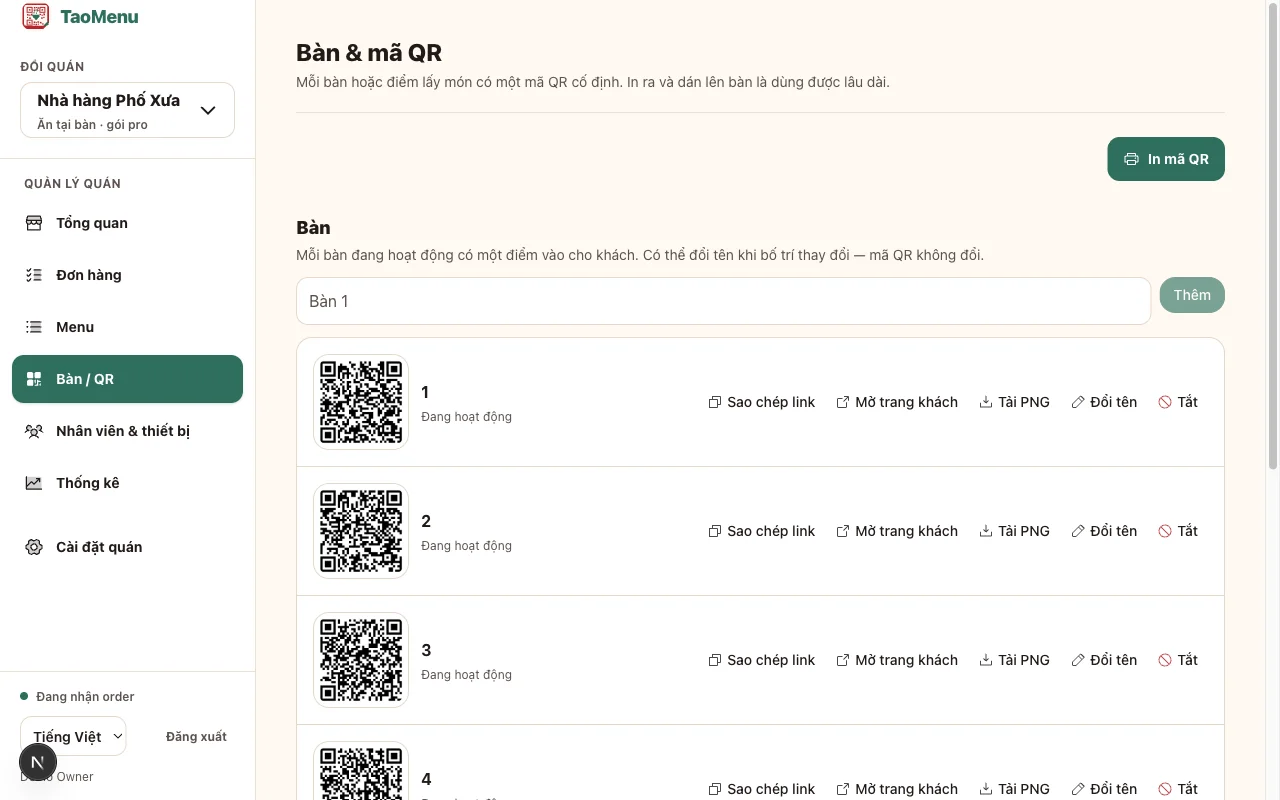
- Go to the Table Management section.
- Enter the number of tables in your venue (e.g., Table 1 to Table 12).
- The system automatically creates unique QR codes mapped to each specific table.
- Click Download Printable A4 PDF to print clean, formatted table cards with QR codes.
Step 4: Display QR Codes on Tables and Start Serving
- Place the printed QR standees or table stickers across your dining room.
- When guests arrive, invite them to point their phone camera at the QR code.
- They will instantly view your full menu with images, descriptions, and current prices.
3 Common Mistakes to Avoid
- Linking QR codes to large PDF files: Heavy PDFs take a long time to download on mobile data and require frustrating zooming. Always use lightweight interactive web menus like TaoMenu.
- Forgetting to update 86'd items: Remember to flip items to "Sold out" on your phone before service to avoid disappointing guests.
- Printing QR codes too small: Ensure printed QR codes are at least 2x2 inches (5x5 cm) and avoid placing them under direct glare to ensure quick camera recognition.
Get Started Today
In just five minutes, you can modernize your customer experience, eliminate printing costs, and streamline front-of-house operations.
👉 Learn more: